Native OpenTour Voice
Part of the live tour flow.
OpenTour Voice can use VRVI™ inside its existing authenticated session lifecycle and continue into same-language delivery, speech recognition and translation.

VRVI™ · Voice Recognition + Voice Isolation
Enroll a guide once. VRVI™ identifies the intended voice and helps separate it from nearby speakers and environmental sound in realtime.
VRVI™ helps create a guide-focused audio path. It does not promise a silent room or perfect separation.
The real starting point
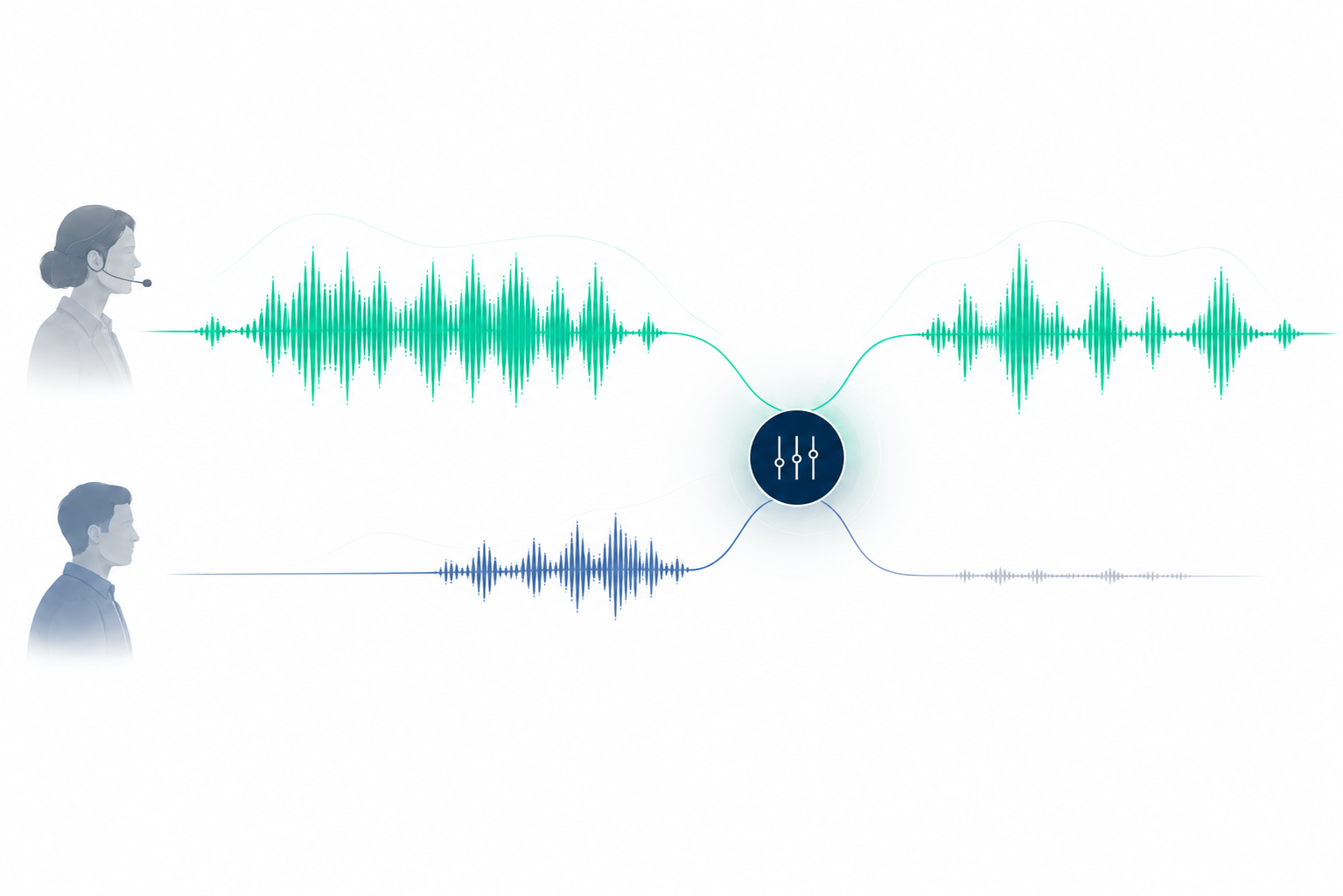
A tour microphone hears the guide, nearby conversations, traffic, passengers and the surrounding environment at the same time. The source audio is mixed before any speech system can decide what matters.
VRVI™ works at that boundary: it uses an enrolled voice identity to help separate the intended guide signal from competing sound before the next speech stage.
Built for the real world
VRVI™ combines voice recognition with voice isolation so the enrolled guide can remain the intended speaker inside a busy audio environment.
Concurrent speech
Background-noise reduction is only part of the problem. On a tour, another person may begin speaking while the guide is still talking.
VRVI™ is designed around the enrolled speaker, helping the intended voice remain dominant when speech overlaps. Competing speech is not assumed to disappear entirely.
A durable identity
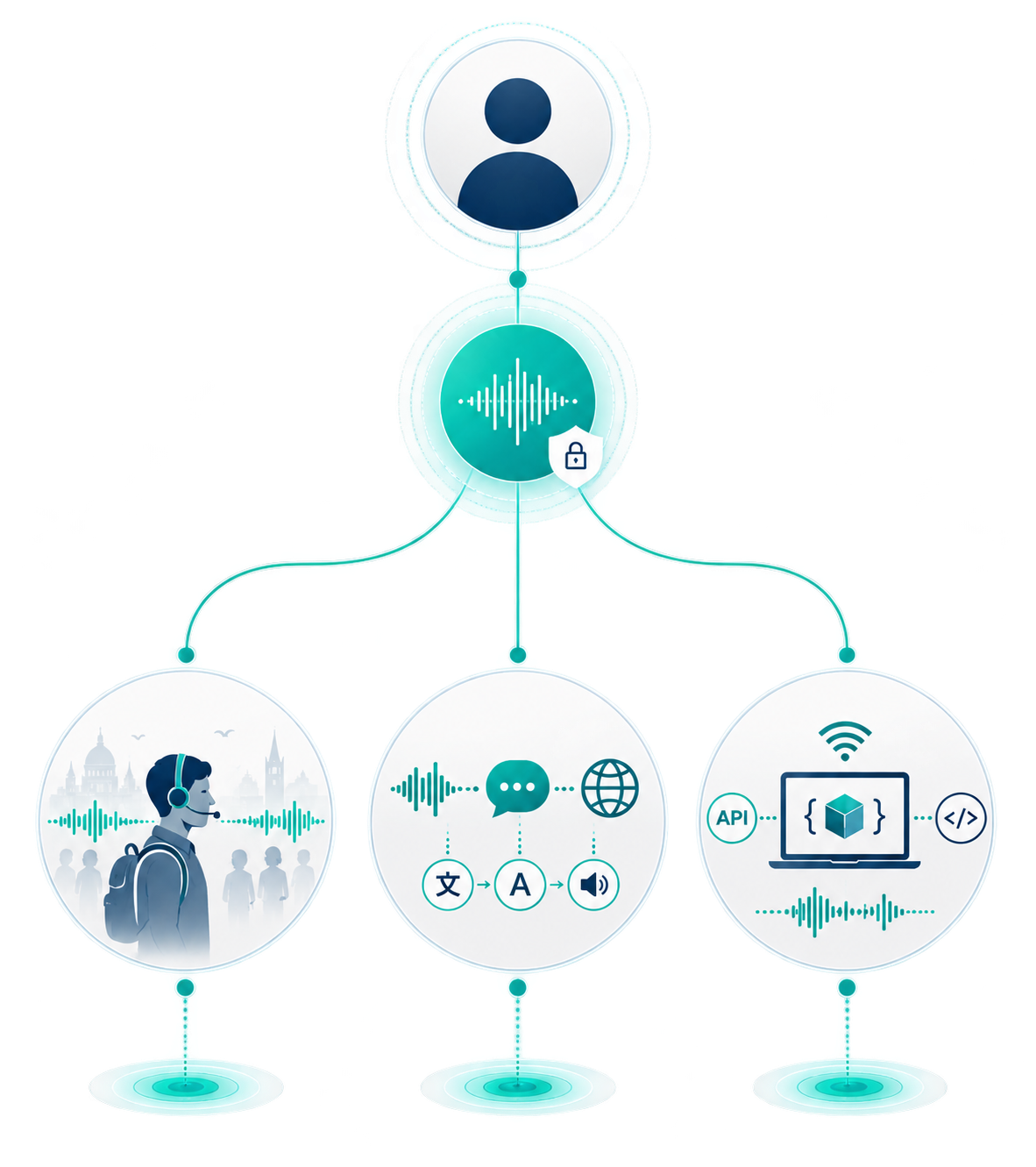
Voice identity belongs to the person, not to an individual tour or workspace. Once enrolled, the same secure voice identity can follow the guide across the OpenTour Voice environments they use.
The underlying profile remains server-side. Permitted workspaces and integrations receive authorization to use it, not a copy of the voice data.
Designed around the stream
VRVI™ operates on the live audio path, preserving audio as audio while the intended voice is isolated for the next stage of the experience.

Native + external
Use the same voice-focused boundary inside the OpenTour Voice realtime flow or create a session through the VRVI™ API.
Native OpenTour Voice
OpenTour Voice can use VRVI™ inside its existing authenticated session lifecycle and continue into same-language delivery, speech recognition and translation.
External realtime API
Create a realtime session over HTTPS, receive a short-lived stream token, and send ordered audio frames over WebSocket.
Security boundary
Ready when your integration is
Enroll a profile, create a workspace key, and use the documented session and frame contract.